
This article discusses in detail the improved BLE beacon based indoor/outdoor detection available for SDK versions 3.3 and above. Make sure to read the indoor/outdoor overview first.
Using outdoor fingerprinting to set up reliable indoor/outdoor transitions requires a sufficiently dense BLE beacon deployment in the venue. For more information, see this extensive section of our knowledge base on working with beacons.
Outdoor Floor Plans
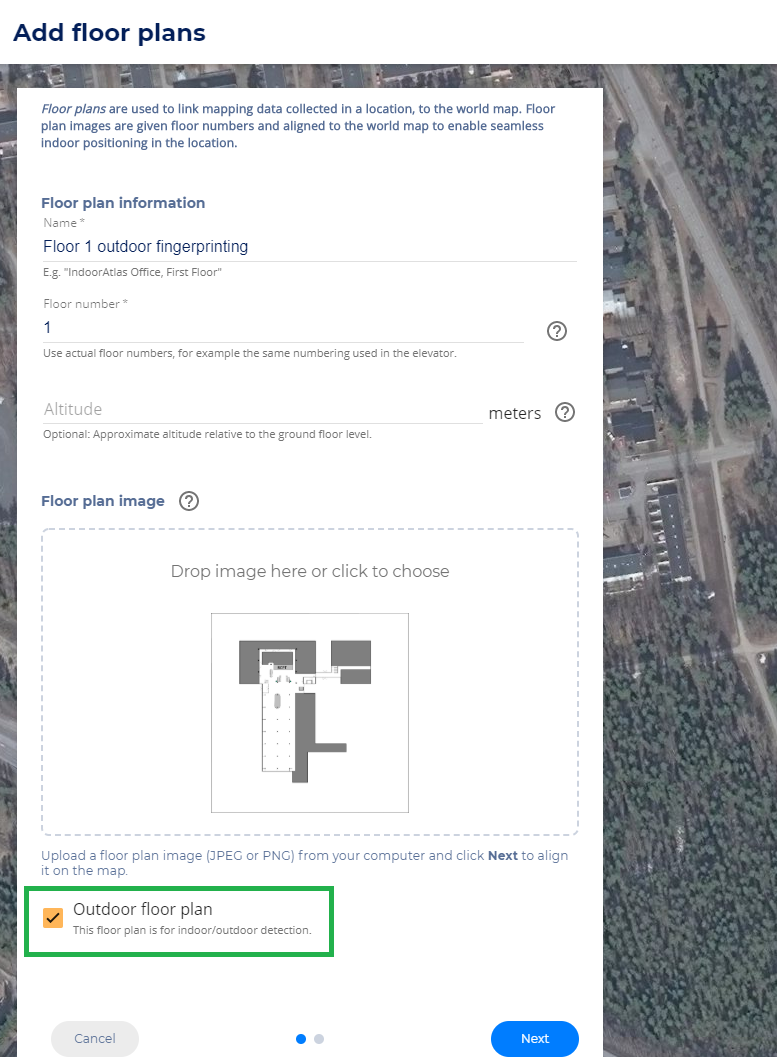
To set up for outdoor fingerprinting, first create an outdoor floor plan. Use a floor plan image which contains the outline of the ground level of the building and at least 20m of the outdoor area around it. Use for example a screenshot from an online map of the area. Mark the floor plan as outdoors by selecting the Outdoor floor plan option in the floor plan creation view, as shown in the image below.
If the venue consists of multiple buildings, you can create an outdoor floor plan for each building, or use one large outdoor floor plan which covers all buildings, which ever is more convenient.
Outdoor Fingerprinting
With IndoorAtlas MapCreator, collect fingerprinting data on the outdoor floor plan. The idea is to cover the areas near the exits, and the main walkways around the building. More generally, cover walkable outdoor areas which are close to fingerprinted indoor areas. This ensures smooth transitions from indoors to outdoors and vice versa, and prevents unwanted jumps between indoors and outdoors.
Note that the outdoor floor plan must not include any indoor data. Outdoor floor plans are not intended to be shown by apps and the IndoorAtlas SDK does not trigger the Enter floor plan event for such floor plans.
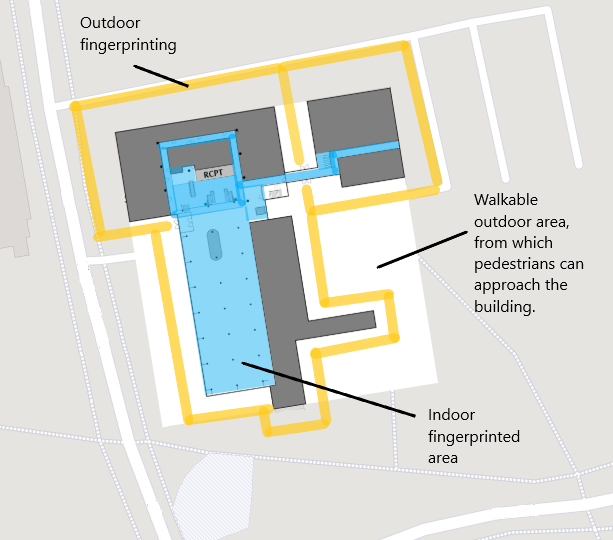
The image below shows an example of outdoor fingerprinting. The blue area is fingerprinted indoor space, and the orange paths are outdoor fingerprinting paths around the building, approximately 5-15 meters from the walls.
Some key things to note when doing outdoor fingerprinting:
- Waypoint placement and check-ins need not be very accurate because the data will not be used for sensor fusion (indoor) positioning.
- Distances between waypoint check-ins can be longer than when doing indoor fingerprinting.
- Outdoor paths should be in walkable outdoor area, typically around 5-15 meters from the building. Depending on the outdoor walkways, it might be good to create paths even closer to walls than this.
- In particular, near the building entrances, it's usually good to extend the outdoor paths up to a couple of meters from the entrance.
- Take care not to collect overlapping fingerprinting data on indoor and outdoor floor plans.
- If some sides of the building don't have walkways close to the building, you can ignore them. You don't have to surround the building with outdoor paths.
After collecting outdoor fingerprinting, trigger map generation for the outdoor floor plan, and once the generation is finished, you are ready to test indoor/outdoor detection. To test using IndoorAtlas MapCreator, make sure to enable Indoor/outdoor mode in the app settings, as shown here. Further note that you also need fingerprinted indoor floor plans in your venue for any of this to work.
Note that even though the outdoor fingerprinting ensures faster detection of indoors vs outdoors, the transition between IndoorAtlas sensor fusion and GPS/platform location might still involve large jumps because the latter can be very inaccurate, depending on the environment. If these jumps are an issue, for example if your use case requires smooth positioning in a building and its immediate surroundings, you can also do regular indoor fingerprinting of the outdoor area, possibly deploying weatherproof BLE beacons there.
Beacon Installation Changes
If the beacon installation in the venue is changed after fingerprinting (beacons are added and/or moved), the fingerprints need to be updated as discussed in detail here. The outdoor fingerprints need to be similarly updated.