
IndoorAtlas supports transitions between (fingerprinted) indoor space and (not fingerprinted) outdoor areas. Indoor/outdoor detection is disabled by default but it can be enabled using the lockIndoors method of the IndoorAtlas SDK. For more details, check out these knowledge base articles for Android and iOS.
With the indoor lock disabled, IndoorAtlas SDK fuses radio signals and platform location data to determine if the user is indoors (in fingerprinted area) or outdoors (outside fingerprinted area). When indoors, the SDK uses sensor fusion to estimate the user's position, and when outdoors, the SDK simply returns platform location.
Starting with SDK version 3.3, a more reliable indoor/outdoor detection for venues with good BLE beacon deployments can be set up using outdoor fingerprinting. Read more here. With SDK version 3.8, a new beacon based indoor/outdoor algorithm is being rolled out in stages. Watch the SDK release notes for updates.
The following image shows the relevant IndoorAtlas SDK events related to indoor/outdoor transitions. Recall that the term venue is used interchangeably with IndoorAtlas locations.
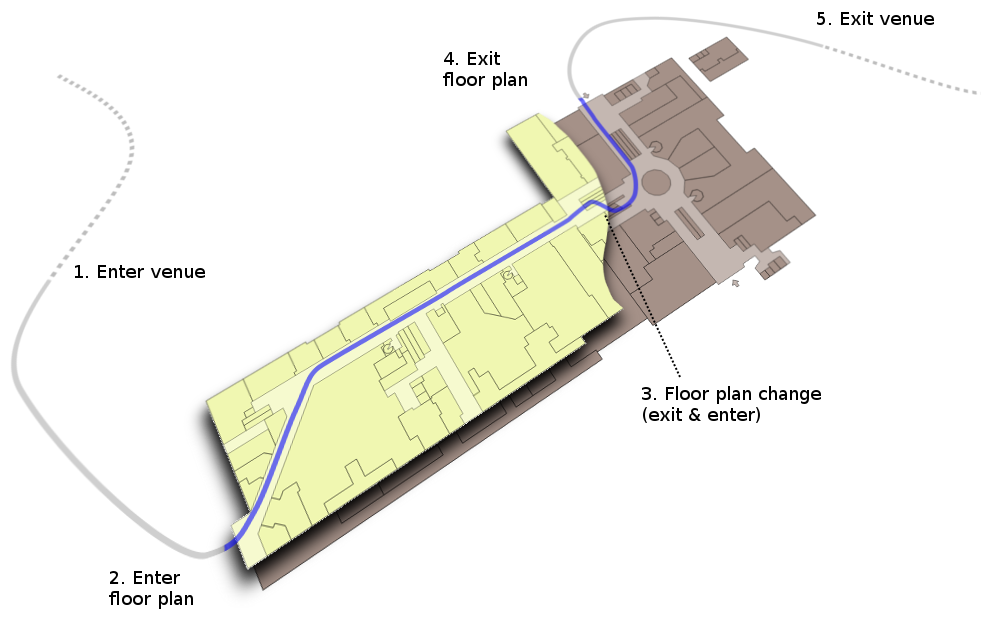
- Enter venue -- This event is triggered when the user is close to a fingerprinted venue. Closeness is determined by platform location.
- Enter floor plan -- This event corresponds to the transition from outdoors to indoors. It is triggered when the indoor/outdoor detection logic determines that the user has entered a fingerprinted indoor space.
- Floor plan change -- Not related to this article, but be sure to align floor plans accurately with respect to each other to enable seamless transitions between floor plans
- Exit floor plan -- This event corresponds to transition from indoors to outdoors
- Exit venue -- This event is triggered when the user leaves the vicinity of a venue
In general, the platform location on a mobile device is not always accurate, so transitions between indoors and outdoors may involve large jumps when positioning is switched between IndoorAtlas sensor fusion and GPS/platform location. In particular when going from indoors to outdoors, it might take a while for GPS navigation to converge, so the first outdoors position estimates may be very inaccurate, and far away from the door where you exited the venue.
Venues with Multiple Buildings
If a venue consists of mulitple buildings, separated by outdoor areas, and the aim is to have indoor positioning in each building and to enable navigation between the buildings, it is recommended to create a single venue, and add separate floor plans for each floor of each building. For example, if the venue consists of three buildings, with four floors each, you would have 12 floor plans in total. Wayfinding/routing also works in this setup: The wayfinding graph editor in the IndoorAtlas web tool supports drawing part of the wayfinding graph connecting the buildings outside the floor plan images. Be sure to draw the connecting parts between the ground level floor plans.
If the buildings are close to each other, you can add a separate floor plan which covers all the buildings (for example a screenshot from an online map), and fingerprint the main walkways connecting the buildings, as if they were indoors. You can even install beacons along the walkways, if you have suitable weatherproof beacons. Note that this approach may not be practical, depending on the size and geometry of the outdoor area, and should be used as a last resort if the indoor/outdoor performance is not satisfactory. A better option would be to use the outdoor floor plans as described here.